A Mac keyboard on the glass
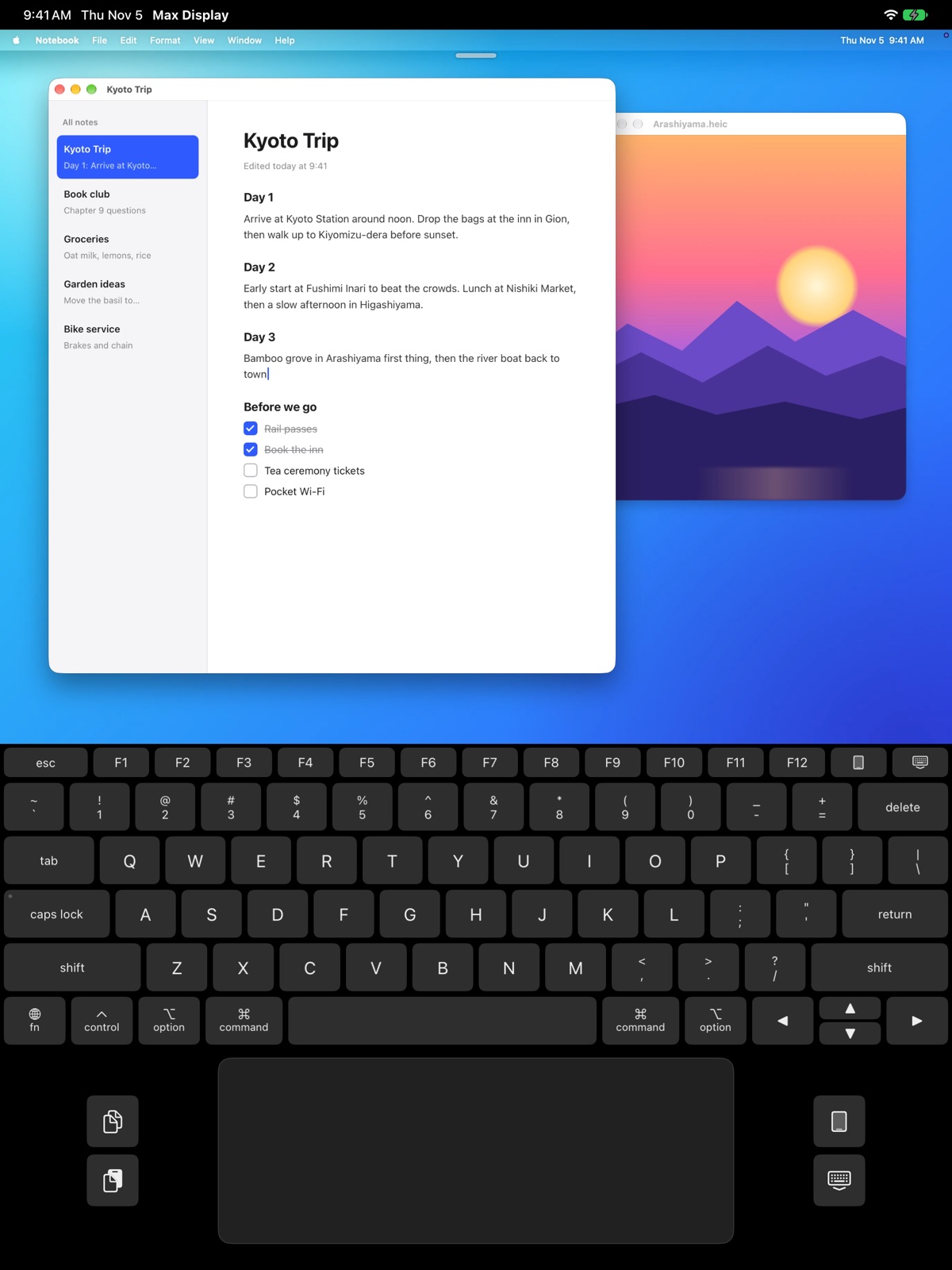
On iPad and the larger iPhones, the keyboard sits under the picture with a trackpad below it, so the whole Mac screen stays in view while you type. Turn the device sideways and the keyboard takes the lower half.
Max Display turns the iPad, iPhone, iPhone Duo or Mac next to you into another screen for your Mac. Android tablets and smart TVs work too, right in their web browser. Drag windows onto it and use it by touch, or with a Mac keyboard and trackpad right on the glass.
It sits in the menu bar and makes the extra screens. macOS treats them like real monitors.
Your Mac shows up by itself when both are on the same network.
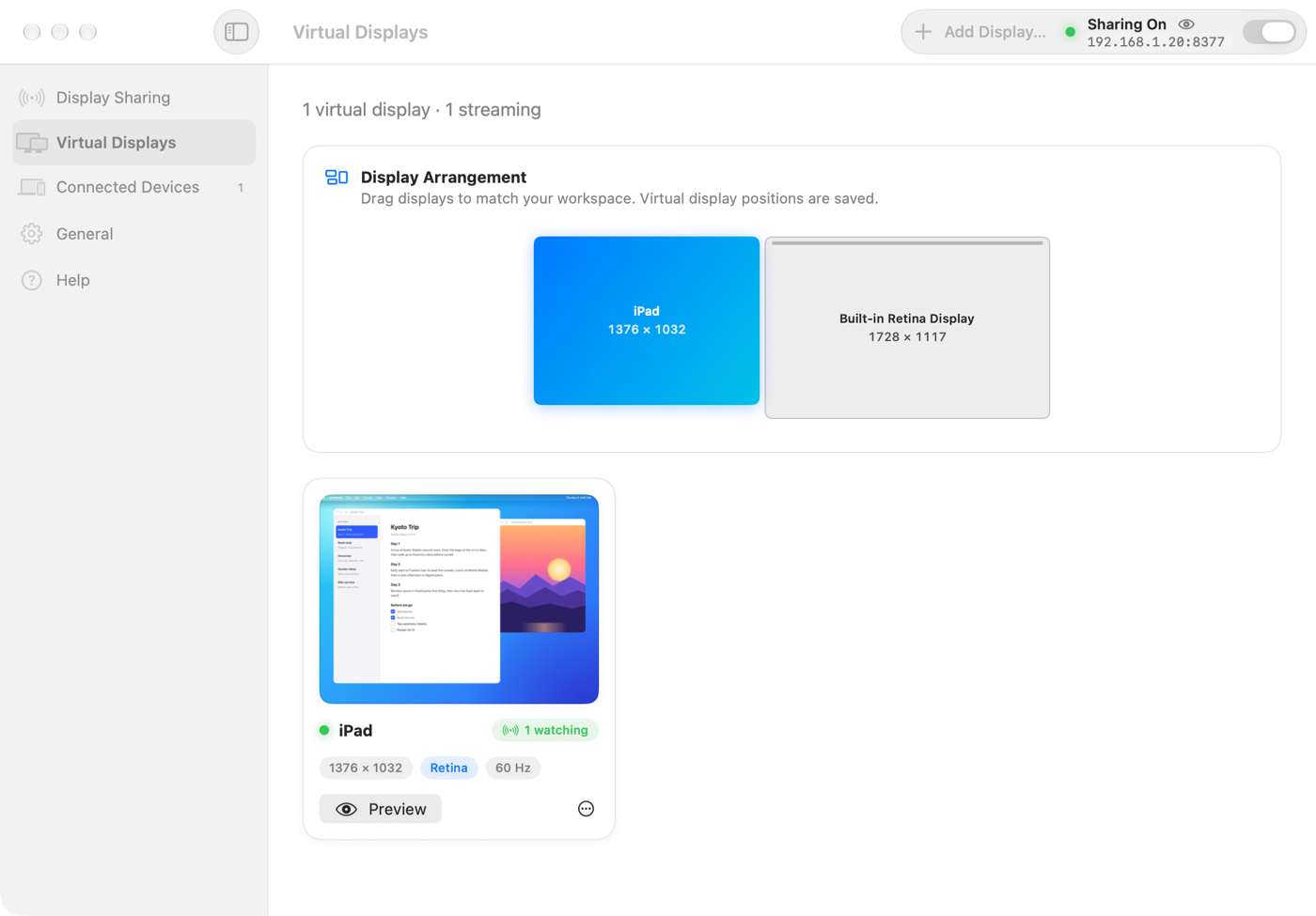
The screen appears. Drag windows onto it, just like a second monitor.
Each virtual display is a real screen as far as macOS knows. Pick its size, turn Retina on or off, choose 60 or 120 Hz, then drag it to the side of your Mac where the device really is. Your pointer and windows cross over at that edge.
Max Display Sender remembers the spot, so the screen comes back there next time.
Stand iPhone Duo up and Max Display splits it the way a laptop is split: your Mac's screen above the fold, a full Mac keyboard and trackpad below it. Lay it flat for the whole picture, or close it and carry on with the outer screen.
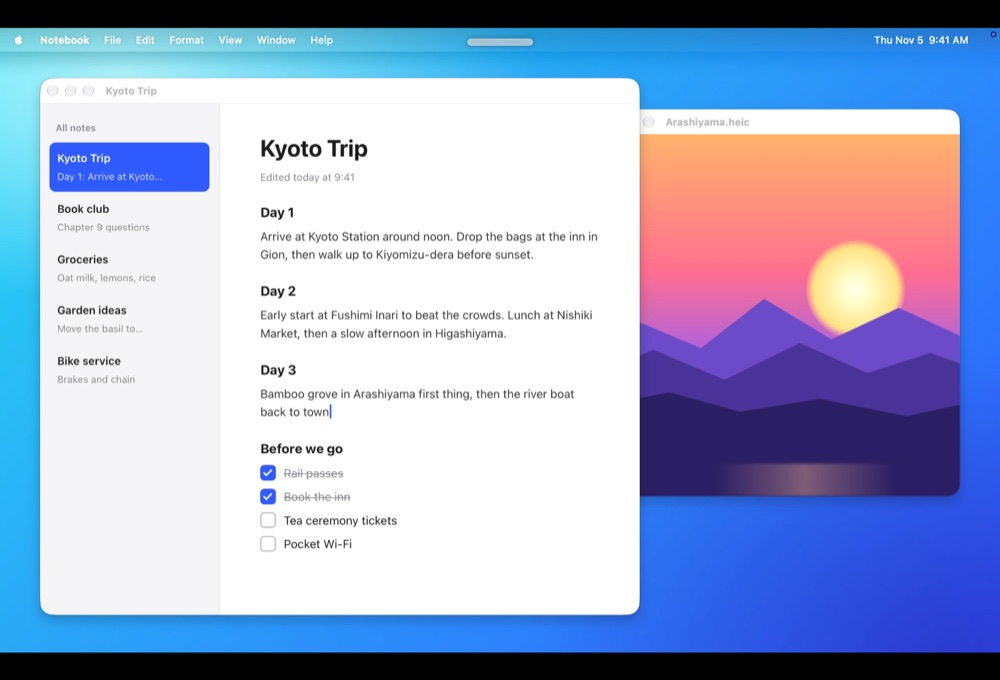
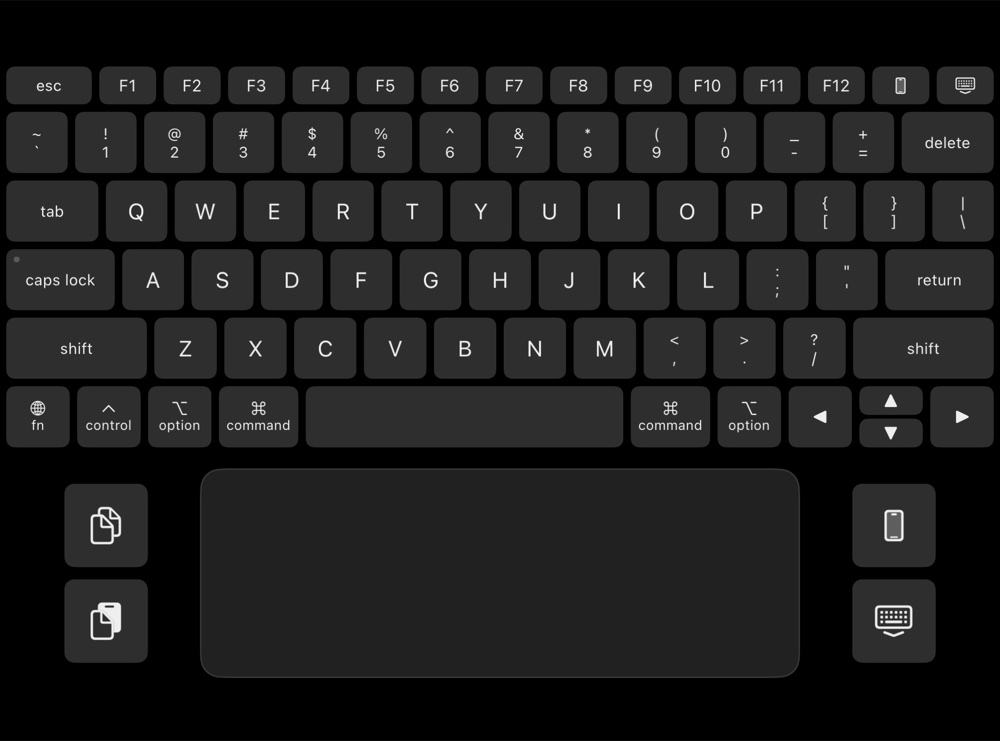
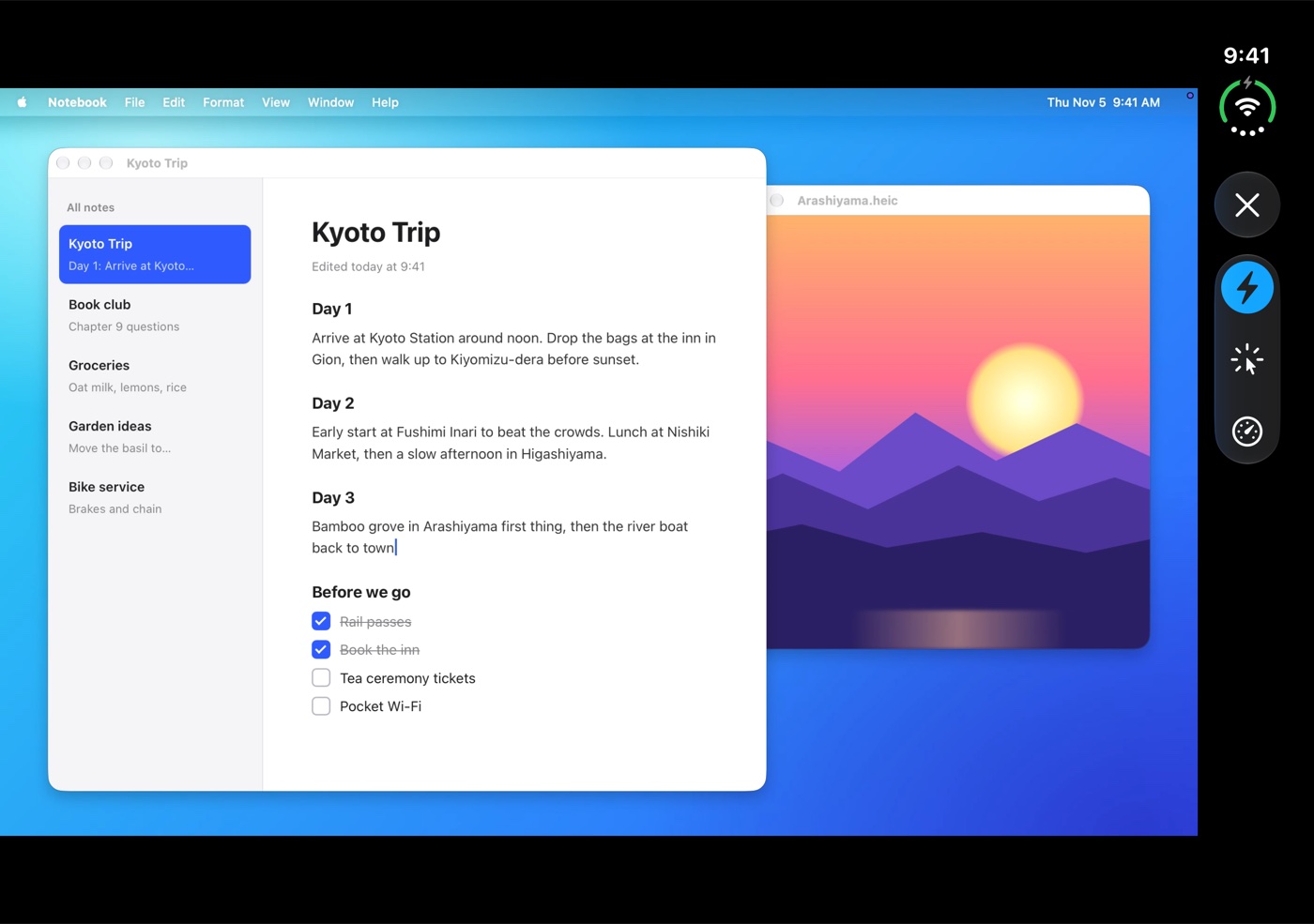
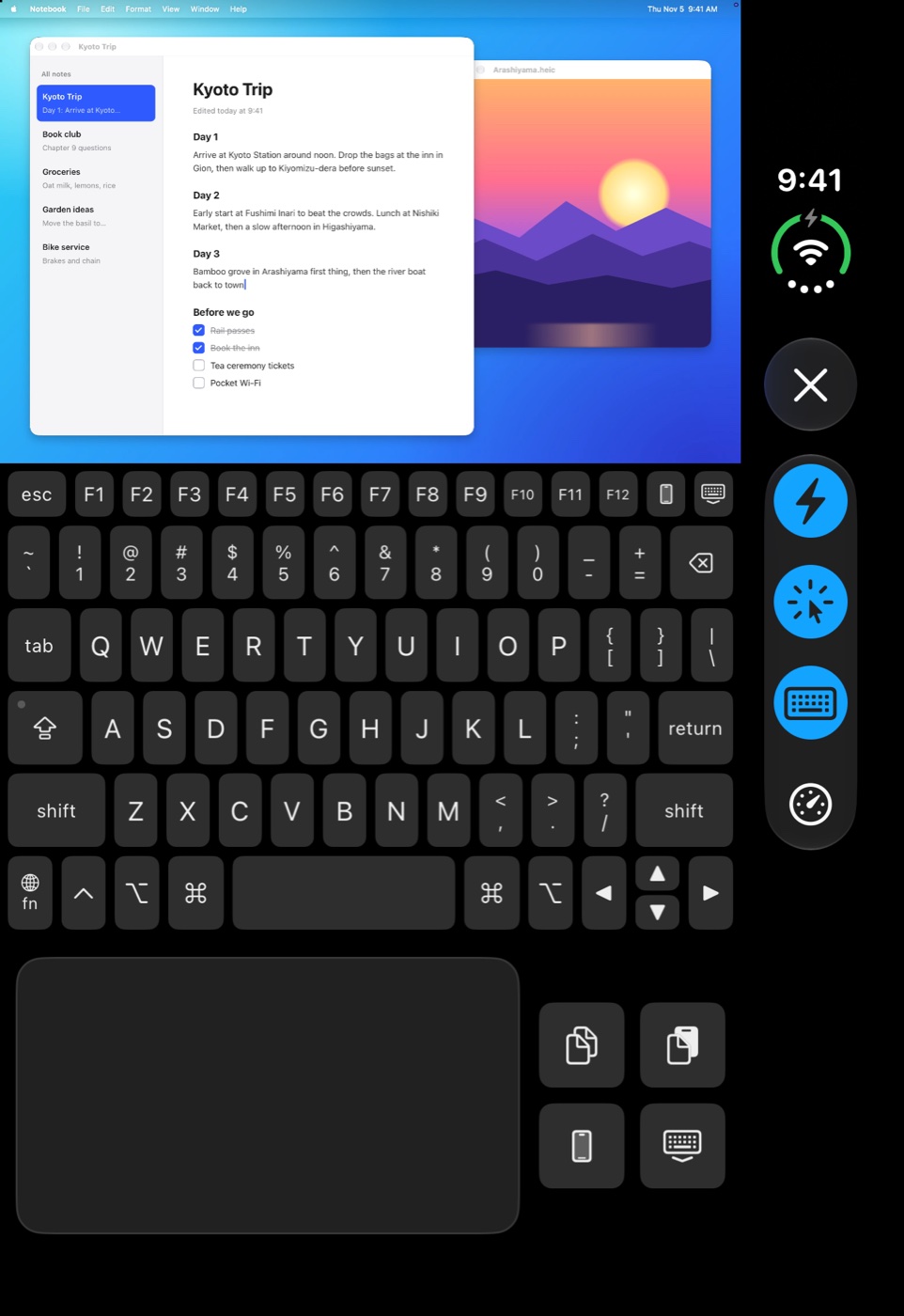
Stand it up with Control Mac on, and the keyboard and trackpad come up by themselves.
Esc, F1 to F12, arrow keys, and Command, Option, Control and Shift. Tap a modifier once and it stays down for the next key.
Tap to click, tap with two fingers to right-click, scroll with two fingers, and hold for a moment to drag.
Two buttons beside the trackpad send Command-C and Command-V, and one more swaps to the iPhone keyboard for emoji and dictation.
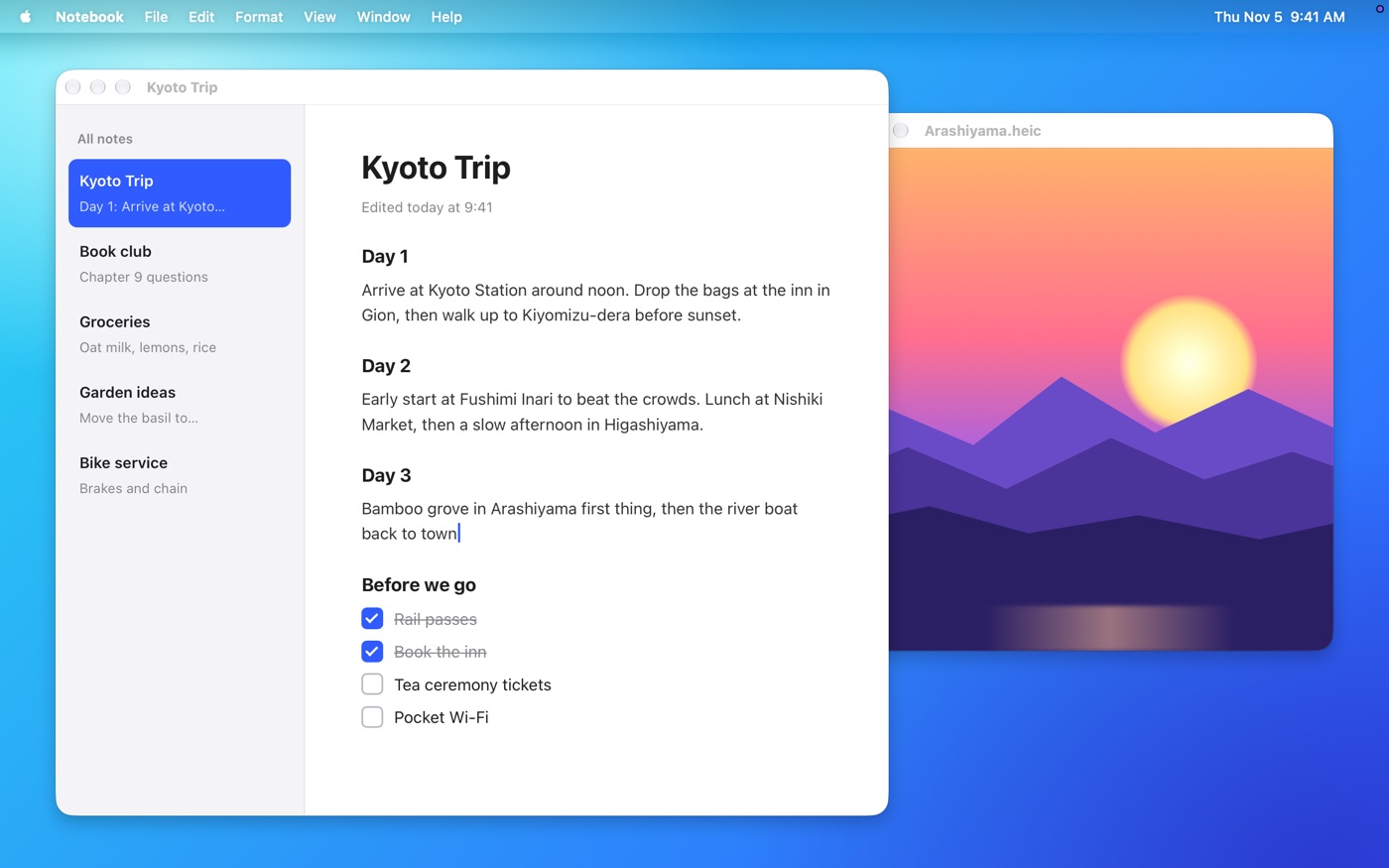
Turn on Control Mac and the picture becomes a touch surface for your Mac. The same gestures work on the picture and on the trackpad.
Tap once to click. Tap twice to double-click.
On iPad and the larger iPhones, the keyboard sits under the picture with a trackpad below it, so the whole Mac screen stays in view while you type. Turn the device sideways and the keyboard takes the lower half.
Up to 120 frames per second on ProMotion screens, encoded by your Mac's video hardware in HEVC or H.264. Turn on Lowest Latency when a quicker response matters more than perfectly even motion.
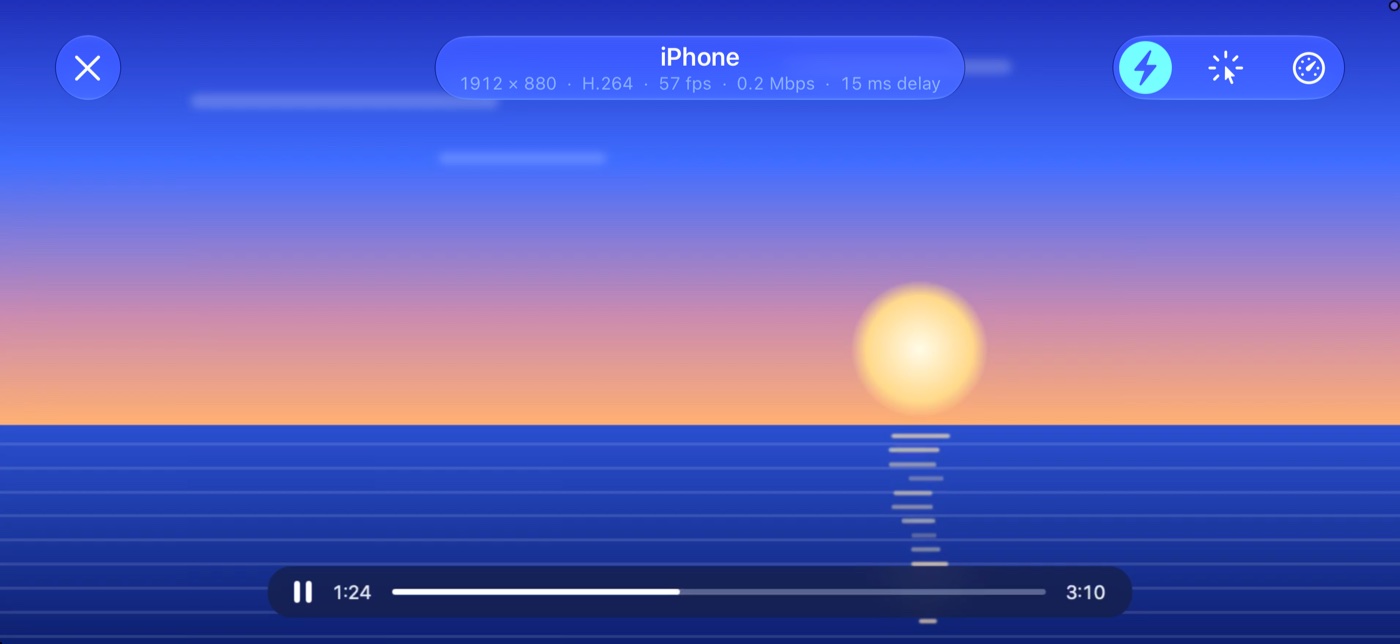
Each dot moves at the same speed. Only how often the picture updates is different.
Your own screen sets the limit here: on a 60 Hz display, the last two look the same.
No app on that device? Open the address Max Display Sender shows, or scan its QR code, in Safari, Chrome or Firefox. Android tablets and Windows laptops work too, and you can control the Mac from there as well.
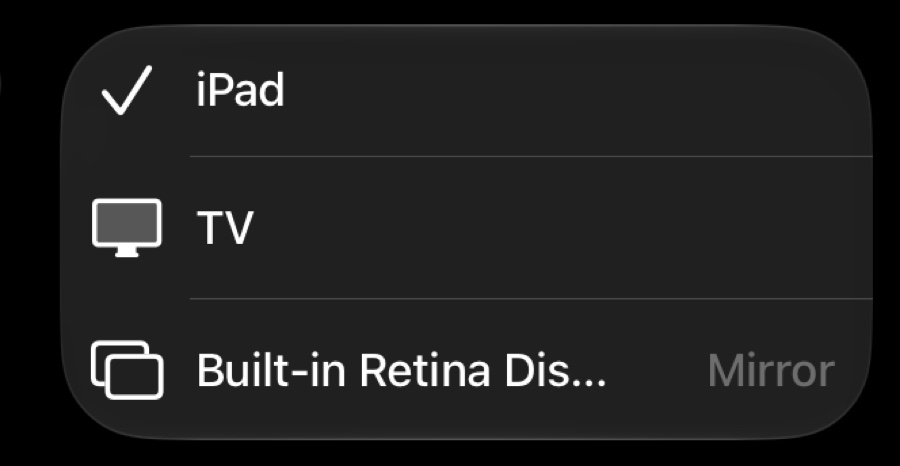
Share the built-in display or a plugged-in monitor, and it joins the Displays menu next to your virtual ones. Check on your Mac from another room. You decide which screens to share.

The picture goes straight from your Mac to your device and never passes through our servers. The apps encrypt the connection, and with the standard settings nobody can watch or control your Mac without the pairing code.
Smart TVs come with a web browser, and that's all Max Display needs. Open the address from Max Display Sender on the TV and your Mac fills the big screen: slides in a meeting room, holiday photos for the family, a dashboard on the office wall. Send it an extra screen of its own, or mirror the display you're looking at.

The TV's own browser shows the picture. Type the address once, then keep it as a bookmark for next time.
Choose TV Compatibility in Max Display Sender. It sends H.264 at 3 Mbit/s and 30 frames a second, a pace TV hardware and home Wi-Fi keep up with.
Many TV browsers won't accept the Mac's own security certificate, so this setting leaves browser encryption off. With the pairing code on, only a TV that has the code can watch.
A Mac with macOS 14 Sonoma or later to run Max Display Sender. For the extra screen, any of these: an iPhone or iPad with iOS 17 or iPadOS 17 or later, iPhone Duo, another Mac with macOS 14 or later, or a device with a modern web browser.
No. The picture travels over your network, Wi-Fi or Ethernet.
No. Your Mac and the other device need to be on the same network, such as the Wi-Fi at home or in the office.
Yes. Make a virtual display for each device and connect each device to its own one. Several devices can also watch the same screen.
The virtual displays go away and macOS moves their windows back to your other screens, just as it does when you unplug a monitor. Next time, the displays come back where you left them.
As the extra screen, yes: open the address Max Display Sender shows in a browser on that device. Max Display Sender itself needs a Mac.
If the TV has a web browser, open the address Max Display Sender shows. For the steadiest picture, choose TV Compatibility under Browser Preset on the Display Sharing page in Max Display Sender. Choose Standard to go back.
Making virtual displays needs access to macOS that apps on the Mac App Store aren't allowed to have, so you download it from this site instead. Max Display, the app for iPhone, iPad and Mac, is on the App Store.
The picture travels only across your own network. The Max Display app encrypts the connection, and devices need the pairing code shown on your Mac before they can watch or control it. Browser connections can be encrypted too, with a switch in Max Display Sender. The privacy policy has the details.